

“I literally start with a piece of paper,” says Bart, reflecting on his decade of dashboard development. “While most people use sophisticated mockup tools that are Photoshop-like, I work old-fashioned with pen and paper because it’s simply more effective.”
This approach isn’t about being a technophobe; it’s about psychology and collaboration. When you open Power BI or Tableau in a meeting, stakeholders freeze. They see complexity, assume they won’t understand it, and mentally check out. But hand them a marker at a whiteboard? Suddenly everyone’s engaged, pointing at sketches, suggesting changes, and actively participating in the design process.
The paper-first method offers three critical advantages. First, it forces you to think about information hierarchy without getting distracted by colors, fonts, or fancy chart types. You focus purely on what goes where and why. Second, it’s infinitely faster to iterate: crossing out a box and redrawing it takes seconds, not the 15 minutes of clicking through menus in your BI tool. Third, and most importantly, it creates shared ownership. When stakeholders help sketch the dashboard, they’re invested in its success from day one.
Start your next dashboard project with this simple framework: grab a sheet of paper, divide it into a grid (roughly 3×3), and ask yourself: “If users could only see nine things, what would they be?” This constraint forces prioritization and prevents the dreaded “spreadsheet-pretending-to-be-a-dashboard” syndrome that plagues so many BI initiatives.
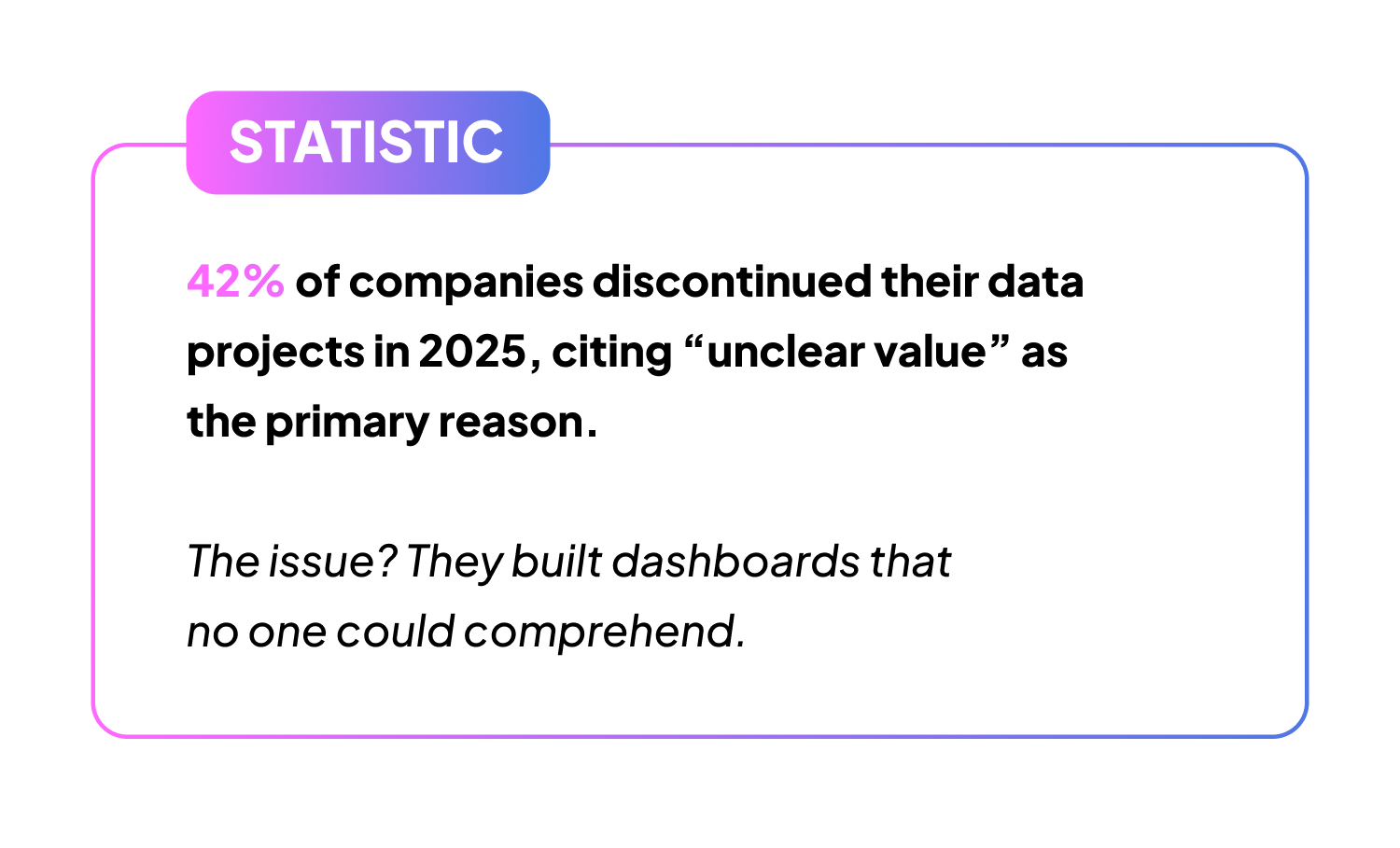
“In principle, if your dashboard is well-built with clear titles and proper context, it should be immediately understandable to end users,” Bart explains. “The title and context should be sufficient for users to understand what they’re seeing without having to ask questions. That’s when you’ve built an ideal visualization.”
Most dashboards fail what Bart calls the “5-second test”: Can someone who’s never seen this dashboard before understand what each element shows within five seconds? If they can’t, you haven’t provided enough context. The solution isn’t more training or documentation; it’s better titles and subtitles on the dashboard itself.
Here’s the formula that works: Every visual element needs three components. First, a descriptive title that states exactly what’s being measured (not “Sales Performance” but “Monthly Sales Revenue vs. Target – Europe Region”). Second, a subtitle that provides essential context like time period, data source, or calculation method (“Last updated: Daily at 9 AM CET | Source: SAP | Excluding returns”). Third, clear axis labels and units that leave no room for interpretation (€ thousands, not just “k”).
Consider this real-world example from Bart’s government project: Instead of titling a chart “Subsidy Overview,” he used “Organizations Requiring Immediate Review – Compliance Issues Detected.” The subtitle added: “Red flags indicate >10% misallocation | Click for detailed audit trail.” This approach transformed a confusing data dump into an actionable insight that users could interpret and act upon immediately.
The goal isn’t to write novels on your dashboard; it’s to eliminate the need for that dreaded question: “What am I looking at?” When every element explains itself, adoption soars and support tickets plummet.
When Bart developed dashboards for the Flemish government, he faced a common challenge: multiple teams building dashboards that looked completely different, confusing users who switched between them. His solution wasn’t a 50-page design manual, it was a practical style guide that teams actually wanted to follow.
“We wrote governance around what must be in every dashboard and how it should visually appear,” Bart recalls. “It was a sort of template that ensured everything was built the same way.” But here’s the key: the guide focused on functional consistency, not aesthetic perfection. Teams retained creative freedom while following core principles that mattered for usability.
An effective dashboard style guide covers five essential elements. First, color usage: not 47 shades of blue, but simple rules like “red only for critical alerts, green for on-target metrics, gray for historical comparison.” Second, chart type standards that match data types (time series always use line charts, comparisons use bars, never pie charts with more than three segments). Third, standard terminology across all dashboards: if one team calls it “Revenue,” don’t let another call it “Sales Income.” Fourth, consistent positioning of common elements like filters (always top or always left, pick one and stick with it). Fifth, documentation requirements including both functional specs (what’s in it) and technical specs (how it’s built).
The beauty of this approach is enforcement through enablement, not policing. Instead of reviewing every dashboard for compliance, provide starter templates that already follow the guidelines. When someone needs to build a new dashboard, they begin with a pre-styled template where the hard decisions are already made. They can focus on their data and insights rather than reinventing the wheel.
Remember: your style guide should fit on one page. If it’s longer, it won’t be read. If it’s not read, it won’t be followed. And if it’s not followed, you’re back to dashboard chaos.
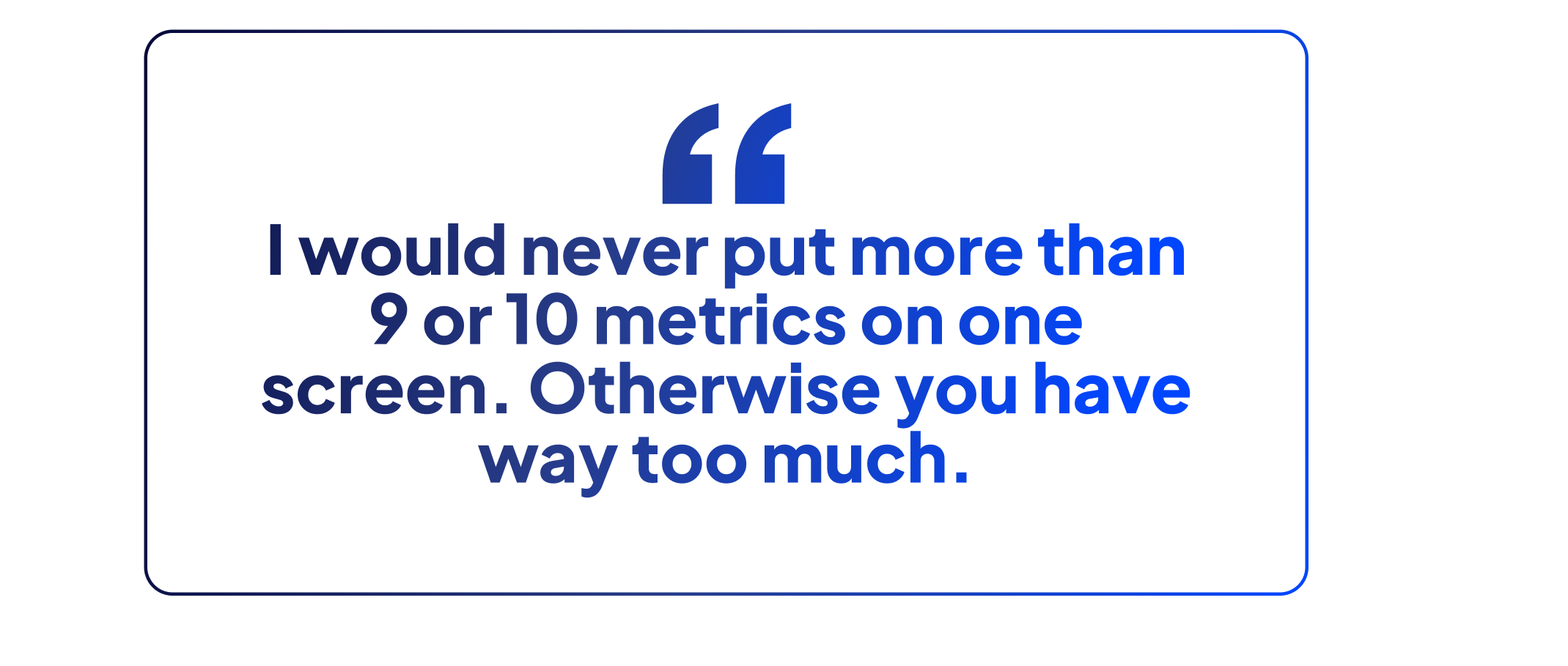
“I would never put more than 9 or 10 metrics on one screen,” Bart states firmly. “Otherwise you have way too much. Your brain cannot process 20 metrics at once, especially when they all have different colors and indicators.”
Yet every client starts the same way: “We need these 20 metrics on our main dashboard.” When Bart encounters this request, he doesn’t argue; he investigates. He asks clients to walk through their current Excel workflow, watching which metrics they check first, second, and third. Patterns emerge quickly. The executive always starts with revenue, then checks customer satisfaction if revenue is down. The operations manager looks at inventory levels, then delivery times if inventory is high.
This observation reveals the solution: hierarchical drill-down design. Your main dashboard shows only the highest-priority metrics, those critical indicators that determine whether everything is fine or if an investigation is needed. When something looks wrong, users click to drill down into related detailed metrics. Think of it like a car dashboard: you don’t need to see oil pressure, transmission temperature, and battery voltage while driving. You need speed, fuel, and warning lights. If a warning light comes on, then you investigate the details.
Here’s a practical framework for prioritization. Start by asking: “What are the three questions this dashboard must answer?” Not twenty, not ten: three. For a sales dashboard, it might be: Are we hitting revenue targets? Which products are driving growth? Where are we losing customers? These three questions determine your primary metrics. Everything else becomes secondary, accessible through drill-down or separate detailed views.
The resistance to this approach usually comes from fear: stakeholders worry that if their metric isn’t visible, it won’t be monitored. Address this by creating a “metric inventory” document that lists all requested metrics and shows exactly where each one lives (main dashboard, drill-down level 1, detailed report, etc.). This transparency ensures everyone knows their metric is captured while maintaining dashboard usability.
“You never deliver a dashboard all at once,” Bart emphasizes. “You work in iterations, delivering pieces as a minimum viable product, then continue working in iterations. Each time you deliver something new, you need to get feedback on the previous work to ensure you’re on the right track from the beginning.”
Research shows that business stakeholders lose interest in projects that extend beyond 90 days. Bart’s solution? Deliver something useful within two weeks, even if it’s just three working charts. This approach transformed a government subsidy monitoring project from a six-month death march into a series of quick wins. After the first two-week sprint, stakeholders could already see which organizations had compliance issues. Not perfect, not complete, but valuable.
The iterative process follows a predictable rhythm. Week 1-2: Deliver your MVP with 3-5 core metrics, roughly styled, with basic interactivity. Week 3-4: Incorporate feedback from the MVP, add 3-5 secondary metrics, refine the styling. Week 5-6: Add drill-down capabilities, polish the design, and implement the style guide. By week 6, you have a functional dashboard that users have already been using and shaping for a month.
But here’s where most teams stumble: feedback management. Bart learned to set strict rules. “When I show something, I explain what I built and why. Feedback is not allowed during the presentation,” he shares. “I tell them: review it, test it, then send consolidated feedback in one document.” This prevents the chaos of conflicting opinions and ever-shifting requirements that derail so many dashboard projects.
The iterative approach also reveals a crucial truth: requirements change as users see what’s possible. That executive who insisted on 20 metrics? After using the MVP with just 5 metrics for a week, they often realize those 5 are all they actually check. The operations manager who wanted real-time updates? They discover that daily is sufficient. By building iteratively, you build what users need, not what they initially think they want.
“The most important thing is to structure your data so it’s tool-independent and can work with any visualization tool,” Bart advises. “The more business logic that sits in your visualization tool, the more locked in you become to that technology.”
This principle saved a telecom client from disaster. They were migrating from QlikView to Tableau, a project estimated at 18 months and €2 million. The problem? All their business calculations lived inside QlikView scripts. Every KPI, every complex calculation, every business rule was embedded in the visualization layer. The migration would mean rebuilding everything from scratch.
The solution is architectural: keep your business logic in the data warehouse, not in your BI tool. Your visualization tool should do exactly that: visualize. It shouldn’t calculate customer lifetime value, determine product profitability, or rank regional performance. Those calculations belong in your data layer, where they’re consistent, testable, and tool-agnostic.
Here’s what belongs where. In your data warehouse: all business calculations, KPI definitions, aggregations, complex joins, historical snapshots, and data quality rules. In your visualization tool: formatting, colors, chart types, filters, and basic period-over-period comparisons. Think of your BI tool as a window into your data, not a calculator for it.
This separation delivers three immediate benefits. First, consistency: every dashboard shows the same numbers because they’re all reading from the same pre-calculated source. Second, performance: complex calculations happen once during data processing, not every time someone opens a dashboard. Third, flexibility: switching from Power BI to Tableau becomes a visualization project, not a complete rebuild. As Bart notes from experience: “If all your business logic is in the data warehouse, you can switch visualization tools in weeks, not years.”
The resistance usually comes from BI developers who love their tool’s calculation capabilities. Yes, Power BI can do complex DAX calculations. Yes, Tableau can handle sophisticated computed fields. But just because you can doesn’t mean you should. Your future self will thank you when the CEO decides everyone’s switching to the hot new BI tool next year.
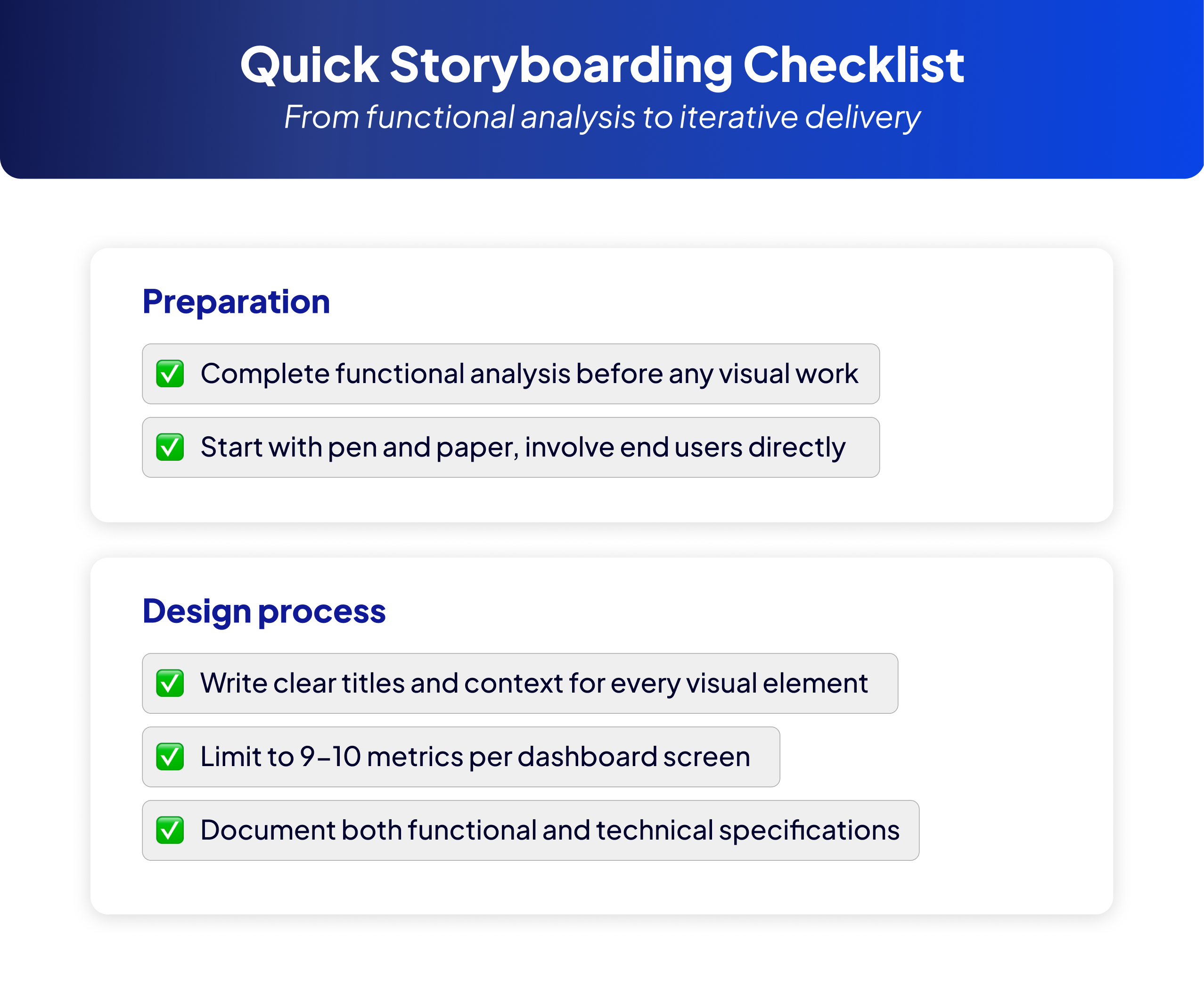
Dashboard design isn’t about mastering complex software or earning a design degree; it’s about understanding user needs and telling clear data stories. Bart’s paper-first approach proves that the best dashboards start with simple sketches, clear communication, and iterative improvement.
You don’t need Photoshop skills or artistic talent. You need a pen, paper, and the discipline to ask: “What story does this data need to tell?” When you focus on clarity over complexity, limit metrics to what matters, and separate your business logic from visualization, you create dashboards that people actually use.
Your Next Step: Before opening any BI tool for your next dashboard project, grab a pen and paper. Sketch nine boxes. Fill them with the most critical metrics your users need. Share that sketch with stakeholders. You’ll be amazed at how much clarity emerges from this simple exercise, and how much time you’ll save by getting alignment before you write a single query.